Claiming a Google Business Profile is free, takes about 10 minutes to submit, and is what unlocks every part of the listing that actually drives leads — editing hours, replying to reviews, posting updates, uploading photos, and ranking in the local pack. If a profile for your business already exists on Google Maps (and one usually does, even if you never created it), you don't need to "set up" a new one — you need to claim the existing one. Here's how, in order.
Claim vs. create: search first
Most local businesses already have a Google Business Profile, even if no one at the company ever made one. Google auto-generates profiles from map data, public records, third- party directories, and user submissions. A previous owner, a former employee, or a marketing agency may also have claimed it years ago and forgotten about it.
Before doing anything else, search your business name in Google Maps. If a result appears, that's the profile you need to claim. Creating a duplicate is the fastest way to get suspended — Google merges or removes duplicates aggressively. If nothing appears, follow the full Google Business Profile setup guide instead and come back here for verification.
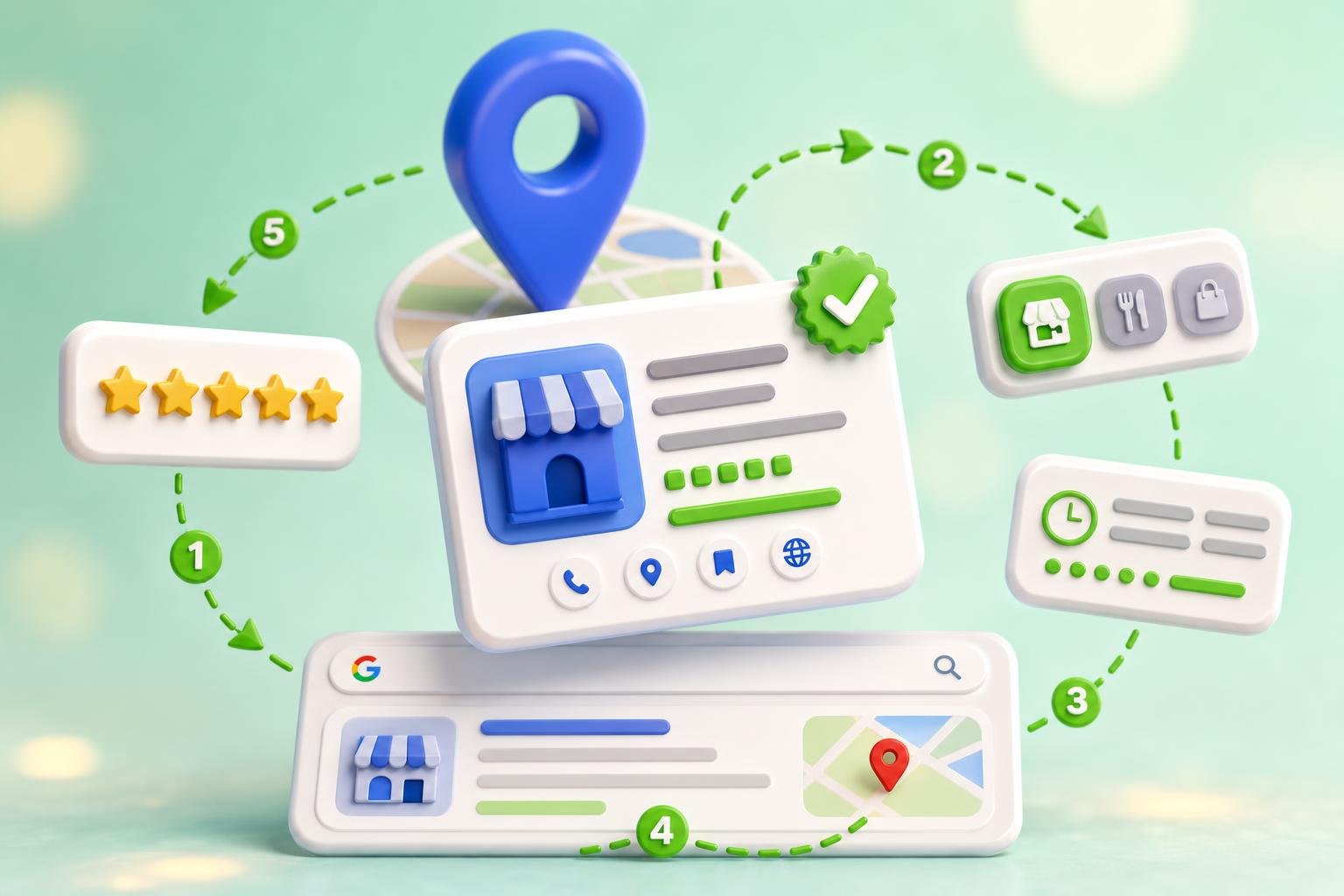
The claim process, in order
Each step takes 2–5 minutes
- Search your business name in Google Maps
- Click the listing, then 'Claim this business' or 'Own this business?'
- Sign in with the Google account you want to own the profile
- Confirm business name, address or service area, category, and phone
- Pick a verification method (video, postcard, phone, or email)
- Complete verification and wait for the green checkmark
- Fill every field — hours, photos, services, products — to unlock ranking
Steps 1–5 take ~10 minutes. Step 6 is the wait. Step 7 is where ranking actually starts.
Step 1: Find your existing listing
Open Google Maps and search the exact business name, then the name plus city. Try common misspellings and your old business name if you've rebranded. If a listing exists, click it, then look for "Claim this business" or "Own this business?" under the photo strip. Both lead to the same flow.
Step 2: Sign in with the right Google account
Use a long-term, business-controlled Google account — ideally a Google Workspace email on your own domain. Personal Gmails belonging to a single employee are the single most common reason businesses lose access to their profile a year later. If you only have a personal Gmail right now, that's fine to start with; you can transfer primary ownership to a Workspace email after verification.
Step 3: Confirm the basics — and watch the name field
Google asks you to confirm the business name, address (or service area), primary category, and phone. Three pitfalls to avoid:
- Business name: must match your real-world signage exactly. Adding keywords ("Joe's Plumbing — Emergency Plumber in Austin") is the #1 reason claimed profiles get suspended in 2026.
- Address vs. service area: storefront businesses use the real staffed address; mobile / travel businesses hide the address and list service areas. Virtual offices and PO boxes are not allowed.
- Primary category: pick the most specific one. "Italian Restaurant" beats "Restaurant"; "Emergency Plumber" beats "Plumber." It's the single biggest ranking signal on the profile.
Step 4: Pick a verification method
Google decides which methods you're eligible for based on your category, address history, and risk profile. You usually see one or two of these:
- Video (most common in 2026): record one continuous, unedited clip in landscape showing exterior signage with the business name, your interior or vehicle, and proof you have access — keys in the door, opening a till, picking up a branded tool. Clears in 1–5 days.
- Postcard: Google mails a 5-digit code to the address on file. Enter it in the dashboard. 5–14 days.
- Phone or email: instant code via SMS or email. Offered to a small subset of eligible businesses, mostly long-established storefronts with consistent NAP.

Step 5: What to do if it's already claimed
If the listing shows "This profile has already been claimed," click "Request access." Google emails the current owner and gives them 7 days to approve, deny, or ignore. Three outcomes:
- Approved: you get manager or owner access. Ask to be made primary owner so you can transfer fully.
- Denied: appeal through Google with proof of ownership (business license, recent utility bill in the business name, signed lease).
- No response (7 days): Google lets you submit ownership documents. Most legitimate transfers complete within 2–3 weeks when documents check out.
Do not create a duplicate profile while you wait — duplicates get suspended and that suspension can spill over to the real listing.
Step 6: After the green checkmark
Claiming and verifying unlocks editing, but it doesn't rank you on its own. Complete profiles outrank sparse ones, and Google measures completeness across these fields:
- Services or menu — second-biggest ranking input after primary category. Add every service with a short description.
- Hours, including holidays — stale hours get flagged as "temporarily closed" and lose 80%+ of impressions.
- Attributes — wheelchair accessible, free Wi-Fi, women-owned, online appointments. All rank-relevant.
- Photos — 10 minimum, refreshed monthly. Profiles with 100+ original photos earn ~520% more calls (BrightLocal).
- Reviews — number and recency are top-3 ranking factors for the local pack. Use the templates in our guide to asking for Google reviews to build a steady stream.
For the full post-claim playbook, read the Google Business Profile optimization guide next.
Why claiming Google alone isn't enough
Google sends most local search traffic in 2026, but Apple Maps, Bing Places, Yelp, Facebook, and dozens of niche directories feed each other through citation signals. If your name, address, or phone is wrong on even a handful of them, Google's confidence in your data drops and your local pack rank suffers. The fix is consistent NAP across every directory — read the NAP citations guide for the why, then check how you actually look across the web with a free listings scan.
Scaling beyond one location
Claiming one Google Business Profile by hand is fine. Doing it across 5, 10, or 50 locations — and keeping each one in sync with Yelp, Apple Maps, Bing Places, Facebook, and 60+ other directories — is where manual work breaks. ClickGrow's Listings AI syncs your business info across 70+ directories from one dashboard and flags every listing that's wrong or missing, so you don't have to log into each one. See pricing or create an account when you're ready.
Already claimed — what's next?
Run a quick audit: search your business in an incognito window, count the directories that show the right NAP, and list the ones that don't. Then fix the broken ones and start posting weekly Google Posts plus 10 review requests in the first 30 days. If you'd rather start with a one-click audit, the free listings scan shows every directory you appear on and exactly which fields are wrong — no signup, no credit card. For a fuller local SEO sweep, the local SEO checklist is the next thing to work through.